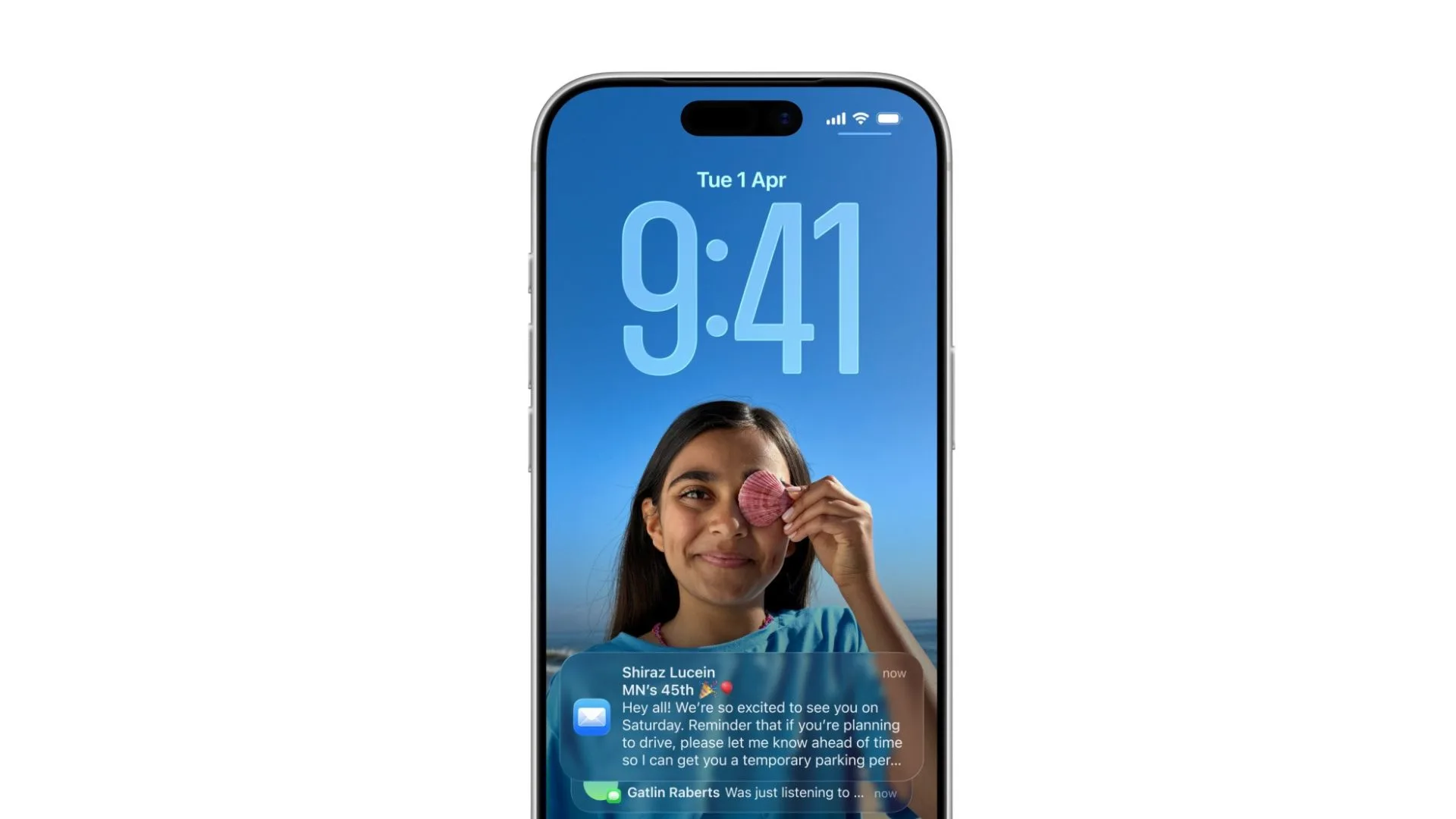
Apple has quietly introduced a new transparency control in iOS 26.1 that lets iPhone users adjust how see-through the Liquid Glass interface appears across menus, notifications, and widgets.
The option provides a middle ground between the original translucent design and the flattened look produced by disabling transparency in Accessibility settings, allowing users to reduce reflectiveness and improve legibility without removing the layered aesthetic.
How to find the new setting
Update your iPhone to iOS 26.1 or later. The update is available for devices that support iOS 26, including the iPhone 13 series and newer models such as the iPhone 16, iPhone 16 Pro, and iPhone 17. After updating, open Settings > Display & Brightness > Liquid Glass to access the new controls and preview changes in real time.
Transparency options
- Clear — Preserves the original translucent, glass-like appearance introduced with iOS 26.
- Tinted — Reduces transparency for a slightly more solid look that improves text and icon readability, especially in bright light.
A live preview displays both options so users can compare before choosing a preferred level.
While not a major redesign, the addition responds to a common user complaint about iOS 26’s glossy finish by offering an easy way to tone down the effect without resorting to accessibility toggles, making the interface more usable in varied lighting conditions.